Writing
How to Set Up Google Analytics for a Cairns Business
A plain-English guide to setting up Google Analytics 4, getting the data clean, and understanding what it tells you. From a Cairns SEO consultant.

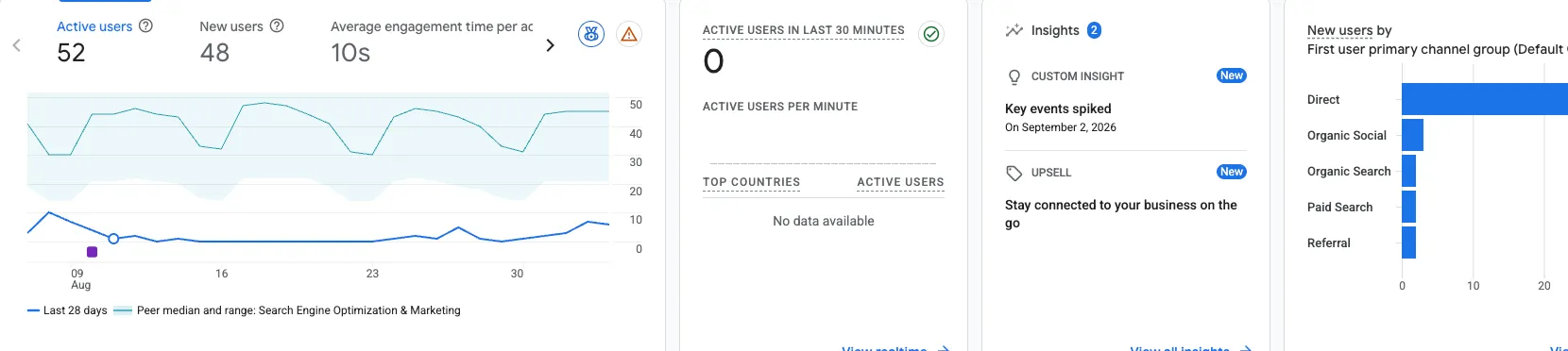
If Search Console shows you what happens out in Google before someone reaches your site, Google Analytics shows you what they do once they arrive. Which pages they look at, how long they stay, what they do before they leave, and whether any of it leads to the thing you actually want, a phone call, a booking, a quote request. The two tools answer different questions and you want both running.
Most small businesses I look at are in one of two states. Either Analytics was never installed, so years of customer behaviour have simply vanished, or it was installed once and nobody has opened it since. This guide gets it running properly on your own site, and just as importantly, sets it up so the data is actually clean enough to trust.
A quick note on naming. The current version is Google Analytics 4, usually shortened to GA4. If you set up Analytics years ago you may have had the old version, called Universal Analytics, which Google switched off. GA4 works differently under the hood, and if someone tells you your “old Analytics” is still collecting data, it is worth checking, because it almost certainly stopped.
What Analytics tells you that Search Console does not
Search Console lives outside your website. Analytics lives on it. Once a visitor lands, Analytics is what records the journey. Did they read one page and bounce, or move through three and fill in your contact form. Are people on phones or desktops. Are your evenings busier than your mornings. Which page is doing all the work and which one everybody ignores.
For a service business this is where you learn whether your website is earning its keep or just sitting there looking nice. The companion to this is the Search Console setup guide, and run together they give you the full picture, the searching and the visiting.
Before you start
Same rule as Search Console, and it matters just as much here. Set this up under a Google account the business owns and controls, not a personal Gmail belonging to a staff member or a contractor. Analytics data is historical and it does not transfer easily. If the account it sits under disappears, so does years of your own customer behaviour. Get this right once and you never think about it again.
Setting up the account and property
Go to Google Analytics and start the setup. Google walks you through three layers, and the names trip people up, so here is what they mean in plain terms.
First you create an account, which is just the top level container for your business.
Inside that you create a property, which represents your website. Google asks for a name, your time zone, and your currency. Set the time zone correctly. If you are in Far North Queensland, that is Brisbane time, and getting it wrong throws out every report that involves time of day. Google will also ask about your industry, your business size, and what you want to get out of Analytics. If you choose generating leads as your objective, Google tailors the default reports toward that, which is useful for most local businesses.
Then you create a data stream, which is the actual connection between your website and Analytics. Choose the web option, enter your site address and a name for it, and leave enhanced measurement switched on. Enhanced measurement is the feature that automatically tracks the common things, page views, scrolling, outbound clicks, site searches, and file downloads, without you configuring anything. For a small business that is most of what you need.
When the data stream is created, Google gives you a Measurement ID, a short code starting with G followed by numbers and letters. That ID is the thing that connects your site to Analytics. Copy it.
Getting the tag onto your site
The Measurement ID does nothing until it is actually on your website. There are three common ways to do that, and which one suits you depends on your platform.
The easiest, if your website builder or content system has a dedicated field for it, is to paste the Measurement ID straight in. Many modern platforms have a built in spot for exactly this, often labelled Google Analytics or a code injection setting in the site header. This is the route I would point most owners toward first.
If your platform has no such field, you can add Google’s tag code directly into the head section of your site. This is genuinely a developer’s job and if that sentence meant nothing to you, that is the signal to hand it over rather than poke at theme files.
The third option is Google Tag Manager, which is a more powerful way to manage tracking codes across a site. It is the right long term answer for businesses doing serious measurement, and overkill for most small operators getting started. Google’s set up Analytics for a website page covers all three, and there is a CMS specific guide if you are on a common platform.
Two steps almost everyone skips
Installing the tag is where most people stop. Two quick settings separate clean, useful data from a mess you cannot trust later.
Exclude your own traffic. By default Analytics counts you. Every time you check your own site, fix a typo, or show it to your partner over dinner, that is logged as a visit. For a small site your own visits can badly distort the picture. Setting up internal traffic exclusion keeps your numbers honest.
Extend your data retention. GA4 defaults to keeping detailed data for a short window, and you can change it to fourteen months in the settings. There is no reason not to. Longer history means you can compare this season to the same season last year, which is one of the most useful things the tool can do.
Then confirm it is actually working. Open the Realtime report, then load your own website in another tab. You should see yourself appear within a few seconds. If you do, the tag is firing. If you do not, the installation has not taken and nothing is being recorded.
What to look at first
Give it a few days to gather data. When it has, a handful of reports earn their attention.
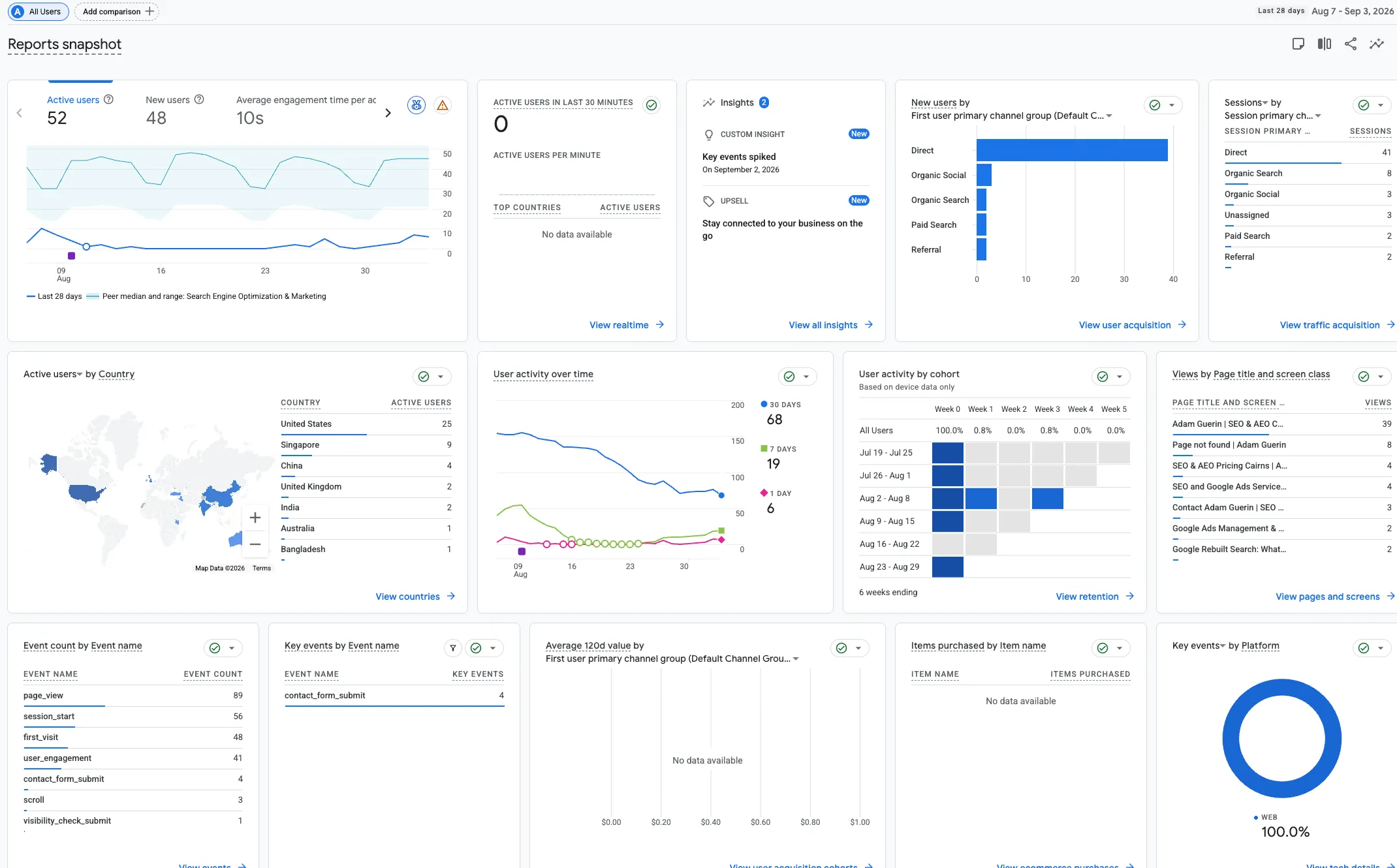
The Reports overview gives you the headline picture, how many people, how often, and the broad trend. The Acquisition reports show where your visitors came from, whether that is Google search, social media, an ad, or someone typing your address in directly. This tells you which of your marketing efforts are actually bringing people in. The Engagement reports show what people do once they are there, which pages hold attention and which lose it.
The single most valuable thing you can do, though, is define what counts as a win. In GA4 the important actions are called key events. A submitted contact form, a click on your phone number, a booking. Until you tell Analytics what success looks like, it is just counting traffic. Once you mark your key events, every other report starts answering a better question, not how many people came, but how many did the thing that makes you money.
Where the DIY stops
Here is the honest part, the same as it was for Search Console but more so. GA4 is genuinely harder to read than it looks.
The setup is an evening’s work. The interpretation is where people come unstuck, and GA4 trips up even experienced marketers because it measures things differently from the version most people half remember. Numbers that look alarming are often normal. A high bounce on one page might be a problem or might mean that page did its job and sent the person where they needed to go. Two visitor sources can look identical in volume while one quietly produces every enquiry you get. Setting up key events correctly, so the tool measures real outcomes rather than vanity numbers, is fiddly, and getting it wrong means you optimise toward the wrong thing for months without realising.
That reading, knowing which numbers matter for your business and which to ignore, is the part that is slow to learn from a help article and fast to learn with someone sitting beside you looking at your actual data. For a local operator, tying what Analytics shows you back to your local SEO in Cairns and FNQ is where it turns from a dashboard into decisions.
Set it up this week, alongside Search Console, and get clean data flowing now so it is there when you need it. Turning that data into things you should actually do is what the training is for.
Get in touch if you’d like to talk this through.